

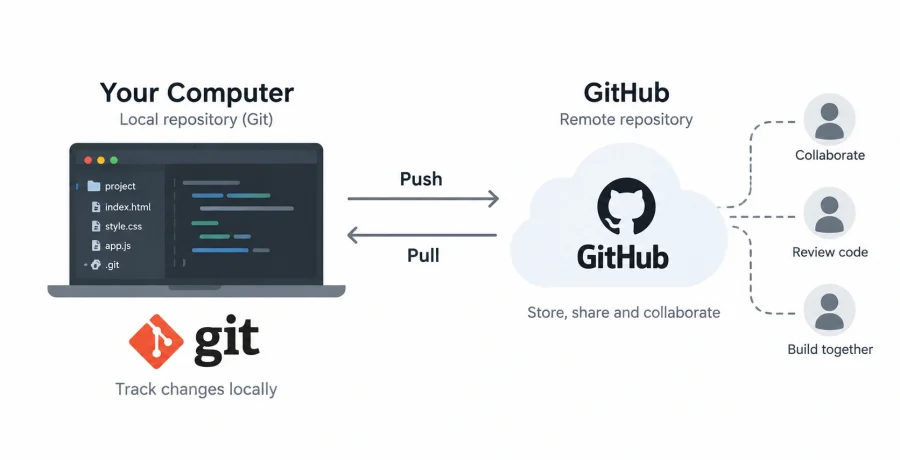
Developers need a reliable way to save different versions of their code because software constantly changes during development, testing, and debugging. Git records these changes locally and allows developers to return to earlier versions, while GitHub provides an online platform for storing Git repositories, sharing projects, and collaborating with other people. Learning how these two tools work together helps beginners protect their code and develop software using the same basic workflow used by professional teams.
What Git is and why developers use it
Git is a distributed version control system that records changes to files and allows developers to maintain a complete history of a software project.
Without version control, developers might create folders named project-final, project-final-2, or project-working-copy whenever they want to preserve an older version. This approach quickly becomes confusing and makes it difficult to understand exactly what changed.
Git solves this problem by maintaining a structured history. Developers can create checkpoints called commits, compare different versions, restore previous code, and experiment with new functionality without permanently modifying a stable version.
Git works locally, which means a developer does not need GitHub or a constant internet connection to create repositories, make commits, inspect history, or create branches.
What GitHub is and how it differs from Git
Git is the version control technology itself, while GitHub is an online service built around Git repositories and collaborative software development.
A Git repository can exist entirely on a developer’s computer. GitHub provides a remote location where that repository can also be stored and accessed through the internet.
This makes it possible to synchronize code between computers, share open-source projects, collaborate with teammates, review proposed changes, report issues, and automate development processes.
The distinction is important for beginners. Installing Git does not automatically create a GitHub account, and using Git does not require GitHub. GitHub is one of several platforms capable of hosting Git repositories online.
The basic Git concepts every beginner should understand
Git becomes much easier to understand once you know how repositories, commits, branches, local changes, and remote repositories relate to each other.
- Repository. A repository is a project tracked by Git, including its files and the history of changes recorded over time.
- Working directory. This is the current version of the project’s files that a developer is actively editing.
- Staging area. Git allows developers to select which changes should be included in the next commit before that commit is created.
- Commit. A commit is a recorded checkpoint containing selected changes together with information such as the author, date, and commit message.
- Branch. A branch provides a separate line of development so changes can be created and tested without immediately modifying another branch.
Another useful concept is a remote repository. A local repository exists on your computer, while a remote repository is another copy stored somewhere else, such as GitHub.
How to create your first Git repository
Creating a Git repository turns an ordinary project folder into a directory whose changes can be tracked through version control.
- Install Git. Download and install Git for your operating system, then confirm that it is available from the terminal.
- Configure your identity. Set the username and email address that Git should associate with your commits.
- Open the project directory. Navigate through the terminal to the folder containing the files you want Git to track.
- Initialize the repository. Run
git initinside the project folder to create the Git repository. - Create the first commit. Add the appropriate files to the staging area and commit them to establish the first recorded version of the project.
After initialization, Git creates internal metadata containing the repository’s history and configuration. You normally do not need to modify these internal files manually.
Before committing everything, create a .gitignore file when necessary. It tells Git which files and directories should not be tracked, such as temporary files, dependency folders, generated files, local configuration, and sensitive environment files.
How commits save and organize changes in your code
A commit records a meaningful set of project changes and creates a point in history that developers can inspect, compare, or return to later.
Suppose you build a login form. After completing and testing that feature, you can stage the relevant files and create a commit with a message such as “Add login form validation.”
Later, you might change the navigation menu and create another commit. Git now has separate records for both changes rather than treating the entire project as one constantly overwritten collection of files.
Good commit messages make history easier to understand. Messages such as “fix” or “changes” provide little information, while concise descriptions of what was actually changed make debugging and collaboration easier.
Commits should also be reasonably focused. Combining dozens of unrelated modifications into a single commit can make the project history difficult to review and complicate attempts to reverse a particular change.
How to upload a local repository to GitHub
A local Git repository can be connected to a GitHub repository so commits can be transferred between the developer’s computer and an online remote.
- Create a repository on GitHub. Sign in to GitHub, create a new repository, and choose an appropriate project name and visibility setting.
- Connect the remote repository. Add the GitHub repository address to your local project using
git remote add origin. - Prepare the main branch. Confirm that the branch you want to publish uses the intended name, commonly
main. - Push the repository. Use
git pushto send your local commits to GitHub and establish the connection between the local and remote branches.
After the first push, the repository becomes accessible through GitHub according to its visibility settings. Future commits can be pushed to update the remote version.
Developers can also clone an existing repository. Cloning downloads the project together with its Git history and configures the original remote automatically.
How branches help developers work without breaking the main code
Branches allow developers to isolate new features, experiments, and fixes from the stable version of a project until the changes are ready to be integrated.
Imagine that the main branch contains a working website. You want to redesign the checkout page, but the changes may require several days of development and could temporarily break important functionality.
Instead of modifying main directly, you can create a separate branch. Changes and commits made there remain isolated from the main branch.
Once the new functionality is complete and tested, the branch can be merged back into the main codebase. On GitHub, teams commonly use pull requests to review these changes before merging them.
Branches also allow several developers to work on different features simultaneously. One developer can improve search while another fixes authentication without constantly overwriting each other’s work.
Essential Git commands beginners should learn first
A relatively small collection of Git commands is enough to handle most basic version control tasks when learning the system.
git status— displays the current state of the working directory and shows modified, staged, and untracked files.git add— adds selected changes to the staging area so they can be included in the next commit.git commit— creates a new recorded version from the changes currently staged.git pull— retrieves changes from a remote repository and integrates them into the current local branch.git push— sends local commits to the corresponding remote repository.
Other useful commands include git log for viewing commit history, git diff for examining changes, git branch for working with branches, and git switch for moving between branches.
Rather than memorizing dozens of commands immediately, beginners should understand what happens to files during the sequence of editing, staging, committing, pulling, and pushing.
Common Git and GitHub mistakes beginners should avoid
Most beginner problems with Git come from misunderstanding the workflow or committing files that should never have entered the repository.
One particularly important mistake is accidentally publishing secrets. Passwords, private keys, database credentials, API tokens, and sensitive .env files should not be committed to a repository. Simply deleting a secret in a later commit may not remove it from the repository’s earlier history, so exposed credentials should generally be replaced.
Another common problem is using git add . without checking which files will be staged. Running git status before creating a commit helps prevent temporary or unrelated files from entering the repository.
Beginners may also avoid pulling remote changes before starting work, which can produce unnecessary conflicts when multiple people modify the same files.
Merge conflicts themselves are not necessarily errors. They occur when Git cannot automatically determine how competing changes should be combined. Developers need to inspect the conflicting sections and decide which version should remain.
Finally, Git should not be treated only as an emergency backup system. Its real value comes from making small, understandable commits throughout development. With a consistent workflow of editing, reviewing, staging, committing, branching, pulling, and pushing, Git and GitHub provide a reliable foundation for protecting code and collaborating on software projects.